

EverBee AI Actions make it easier to analyze images, create variations, and generate content as you browse the web.
With AI-powered prompt generation, you can simplify product creation, analyze images more deeply, and generate new ideas in just a few clicks. Whether you’re looking to reinvent a design, explore different styles, or extract useful details from an image, AI Actions help make your workflow faster and easier.
The best part? AI Actions work across the web, not just on Etsy. Whether you’re browsing Pinterest for inspiration or researching competitors on platforms like Amazon or eBay, you can access AI Actions directly from images to support your product research and creation process.
Key Benefits:
- Create Variations Instantly: Generate multiple variations of a design or product concept with just a single click.
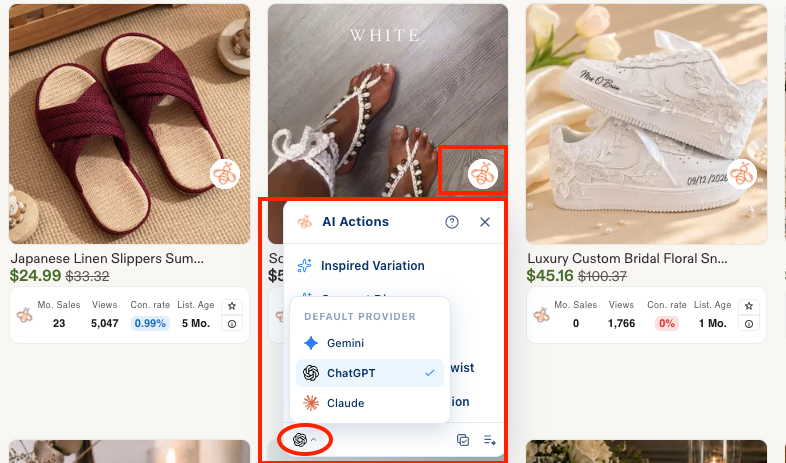
- Choose Your AI Model: Select your preferred AI provider as your default engine. We currently support Gemini, ChatGPT, and Claude.
- Bulk Actions: Save time by performing actions on multiple listings or images at once.
- Custom Prompts: Create custom prompts to change instructions, apply new artistic styles, or completely reinvent an existing design.
- Control AI Actions Visibility: Choose where and when the AI Actions icon appears while browsing non-Etsy websites.

First-Time AI Actions Consent
Before using AI Actions for the first time, eligible users will be asked to review and accept EverBee’s AI Actions usage notice and Terms of Service.
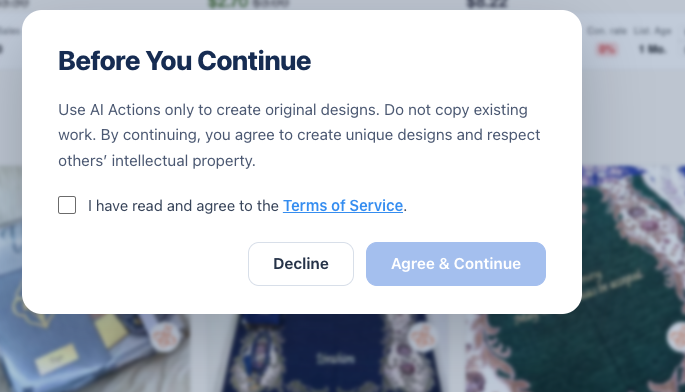
- Growth and Business users: You’ll be asked to provide consent before your first AI Action.
- One-time consent: Once accepted, your consent is saved to your EverBee account, so you won’t need to accept it again when using another browser or device.
- Action resumes automatically: After your consent is successfully recorded, the AI Action you selected will continue automatically.
- Users who are not eligible: If your account is not eligible for AI Actions, you’ll continue through the existing upgrade flow.
- If consent is declined or cannot be saved: The selected AI Action will not run.
Tip: You only need to complete this consent step once per EverBee account.
How to Access and Use the AI Prompts
Accessing the AI prompt menu on any image is designed to be intuitive and native to your usual browsing habits. Simply navigate to an image you want to analyze or reinvent, and hover over the bee icon:
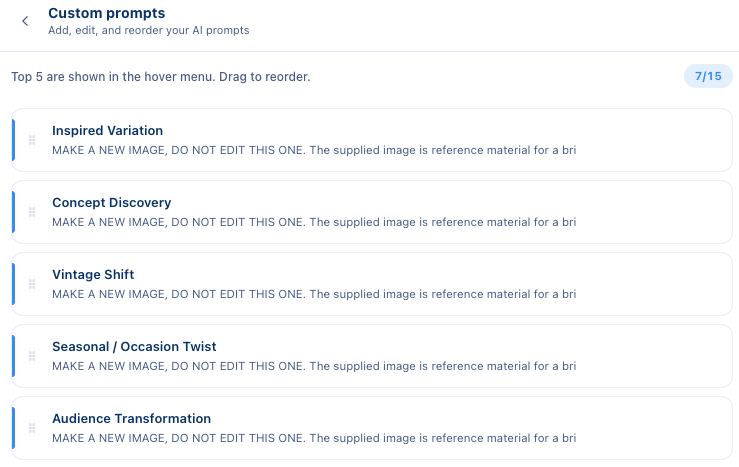
Once the context menu is open, select the AI Actions menu. Here, you will see a list of prompt options, including Inspired Variations, Concept Discovery, Vintage Shift, Seasonal/Occasion Twist, and Audience Transformation.
You can also create, add, edit, and reorder your own custom prompts.
Managing AI Actions Visibility
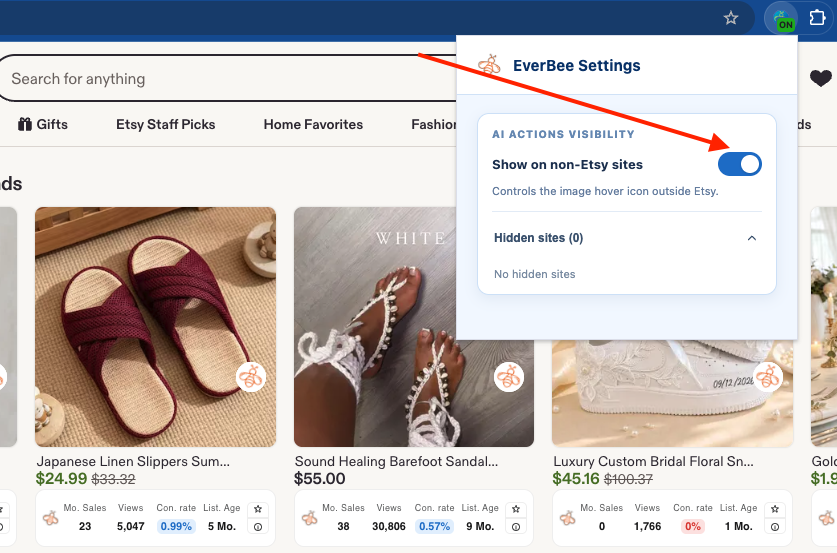
EverBee gives you more control over where the AI Actions hover icon appears when browsing non-Etsy websites.
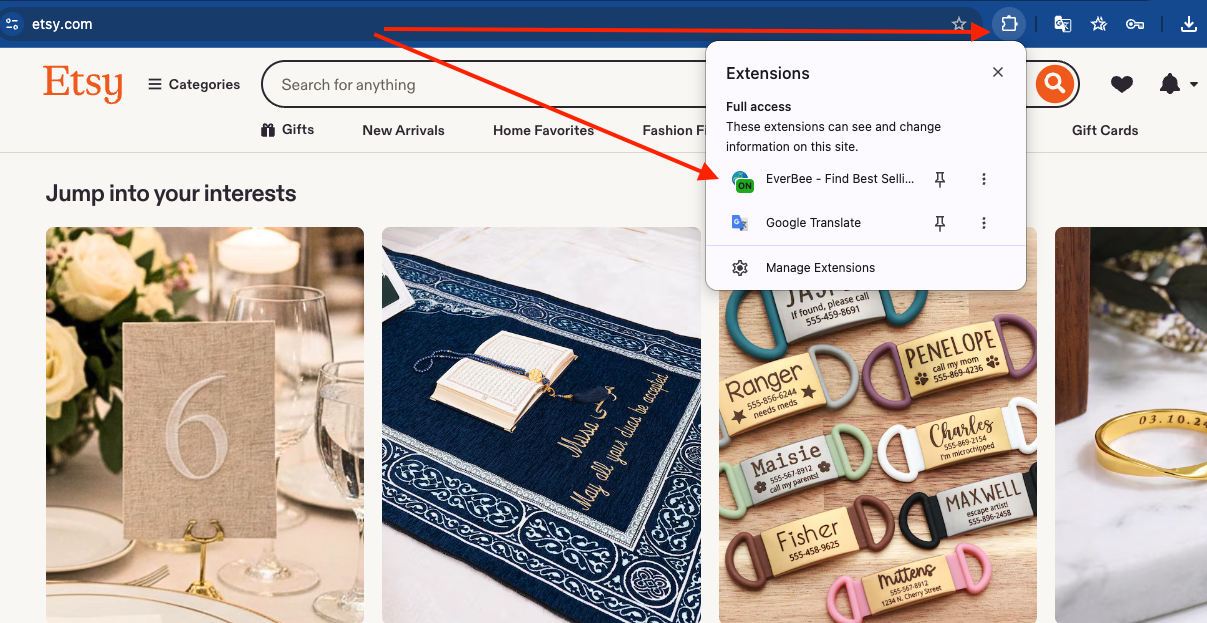
When you hover over an image, the EverBee bee icon may appear, giving you quick access to AI Actions. You can now control when and where this icon is visible directly from the EverBee extension popup.
Available Visibility Options
You can choose from the following options:
- Hide on this site: Hide the AI Actions icon on the website you are currently viewing..
- Turn off on non-Etsy sites: Disable the AI Actions icon across all non-Etsy websites.
- Undo: Restore your previous visibility settings.
You can manage your visibility preferences, paused sites, and hidden domains directly from the EverBee extension popup. Your visibility settings will sync across open tabs and remain active after you restart your browser.
Important: These visibility controls apply only to non-Etsy websites. The EverBee AI Actions experience on Etsy remains unchanged, and the bee icon will continue to be displayed on Etsy pages.
Note: This feature is available exclusively to EverBee Business and Growth Plan members.
If you have any further questions or need troubleshooting assistance, please reach out to our dedicated support team!