

The Builder tab is where you design, customize, and bring your OpoShop storefront to life, with no coding required.
Whether you're launching your first product or creating a storefront that reflects your brand, the Builder provides an intuitive drag-and-drop experience for building a professional, high-converting website.
To get started, watch the video below or follow the step-by-step instructions in this article.
- Accessing the Builder
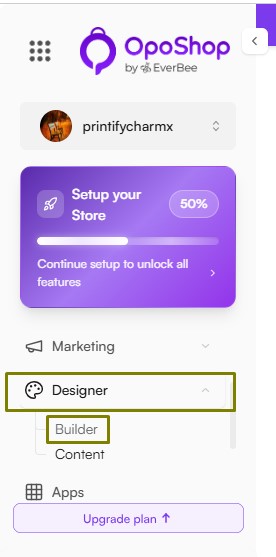
To access the Builder, navigate to the Designer section in your dashboard and select the Builder tab.
- Homepage Builder
Selecting the Builder tab opens the Homepage editor, where you can customize the layout and content of your store's homepage.
From here, you'll also find the Add Section option, which allows you to add, remove, and organize the sections displayed on your homepage.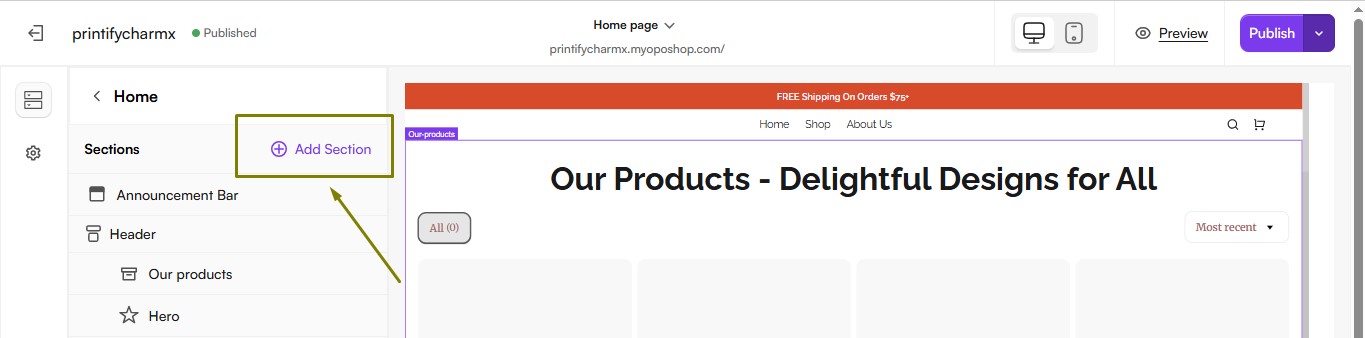
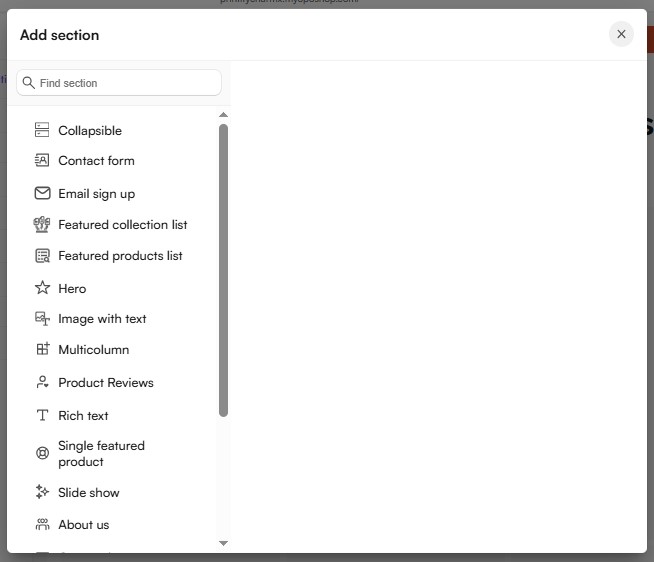
By default, your homepage includes the following sections:
- Announcement Bar – Display important announcements, promotions, or special offers at the top of your store.
- Header – Customize your store's navigation by adding menus and links to pages such as Catalog, Help, and other custom pages.
- Our Products – Showcase your products on the homepage.
- Hero – Create an eye-catching banner with images, text, and call-to-action buttons.
- Image with Text – Highlight products, collections, or your brand using a combination of images and descriptive text.
- Email Sign-Up – Allow customers to subscribe to your website by entering their email address.
- Footer – Add menus and links to important pages, such as Home, About Us, Return Policy, Contact Us, and other helpful resources.
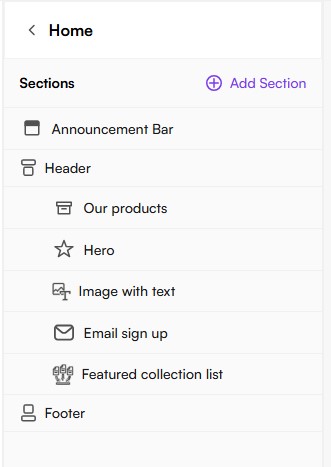
You can customize, reorder, or remove these sections at any time to create a homepage that best represents your brand.
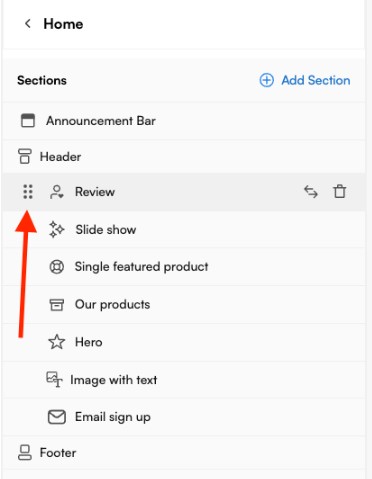
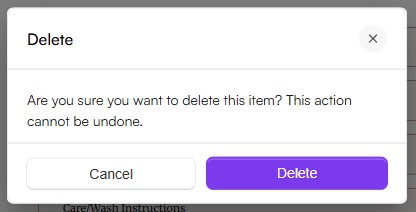
Note: Each section includes its own customization settings. Simply click a section to view and edit its available options.
What You Can Do in the Builder
- Pre-Built Sections
Choose from a library of ready-made sections, including hero banners, product showcases, footers, and more. Every section can be customized to match your brand and store design.
- Live Preview
Preview your changes in real time as you build your store. You can also switch between desktop, tablet, and mobile views to ensure your website looks great on every device.
The Builder automatically adapts your layout for different screen sizes, but you can make additional adjustments as needed.
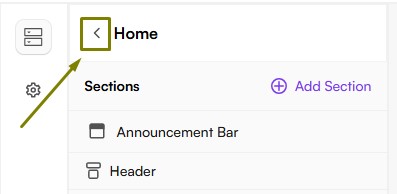
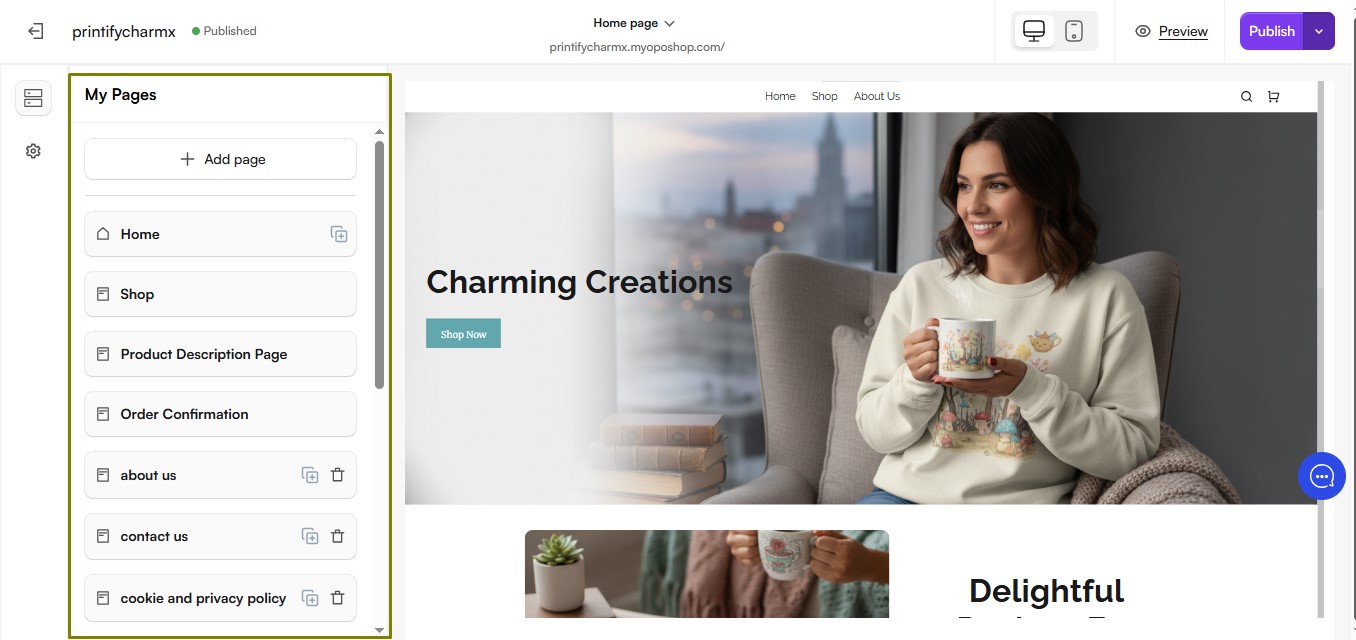
- Page Management
Create and manage your website pages with ease. From here, you can:
- Add new pages, such as About Us, Contact, or FAQ.
- Reorder pages in your site's navigation.
- Remove pages you no longer need.
- After making changes to your website, click Publish to make your updates live.
If you have any questions, our Support team is always happy to help. Contact us at hello@everbee.io or just send us a message here.