

OpoShop allows you to create and customize discounts, helping you attract more customers and drive higher sales. Offering discounts can encourage new buyers to purchase, reward loyal customers, and increase overall order value.
- Creating Discounts
With OpoShop, you can set up different discounts, such as percentage-based or fixed-amount, depending on your marketing strategy.
- To easily set up and manage discounts in your store, follow the steps below:
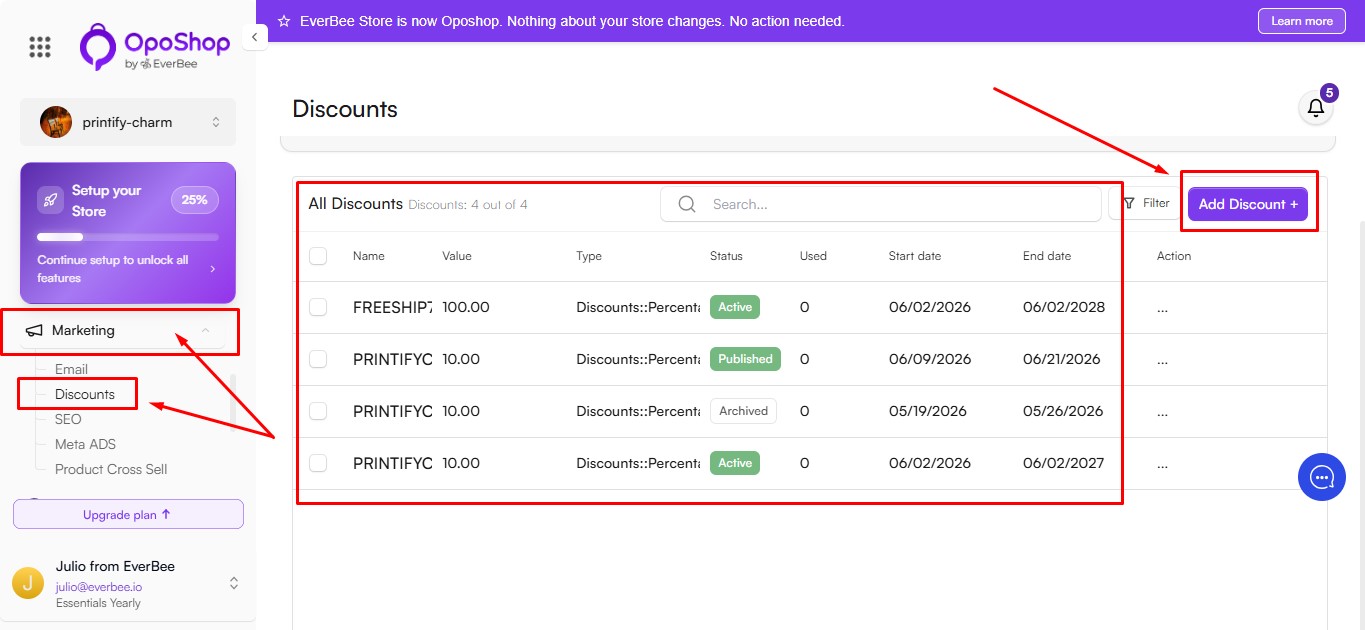
- In your Dashboard, navigate to the Marketing tab.
- Click on Discounts.
- Any of the existing discounts will be displayed here.
- To create a new discount, click on Add Discount.
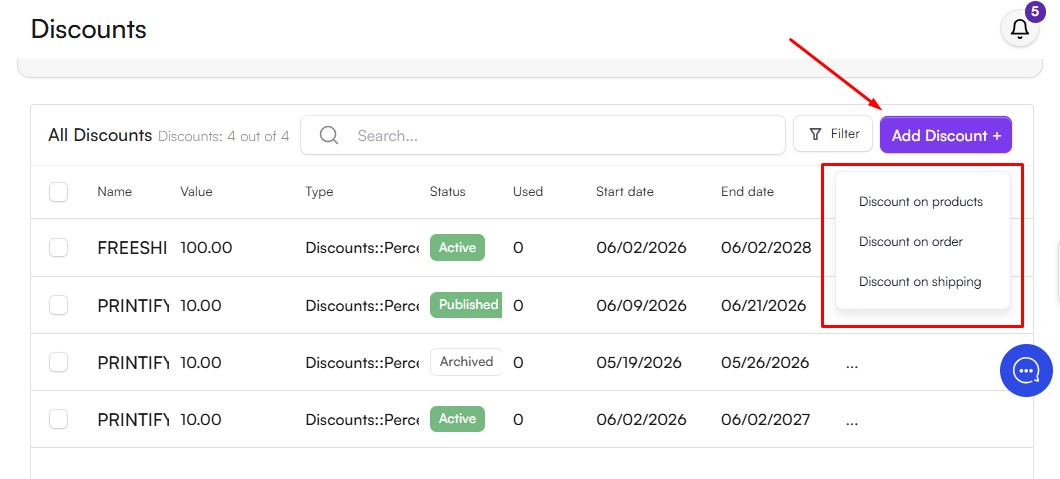
After clicking Add Discount, you'll be able to choose from the available discount types:
- Discount on Products: Apply discounts to specific products or collections.
- Discount on Order: Offer discounts based on the total order amount.
- Discount on Shipping: Reduce shipping costs or offer free shipping.
Select the discount type that best fits your promotion, then configure the discount settings as needed.
- Setting Up Product Discounts
To configure your discount, complete the following fields:
- To help you understand how discounts work, let's start with Product Discounts.
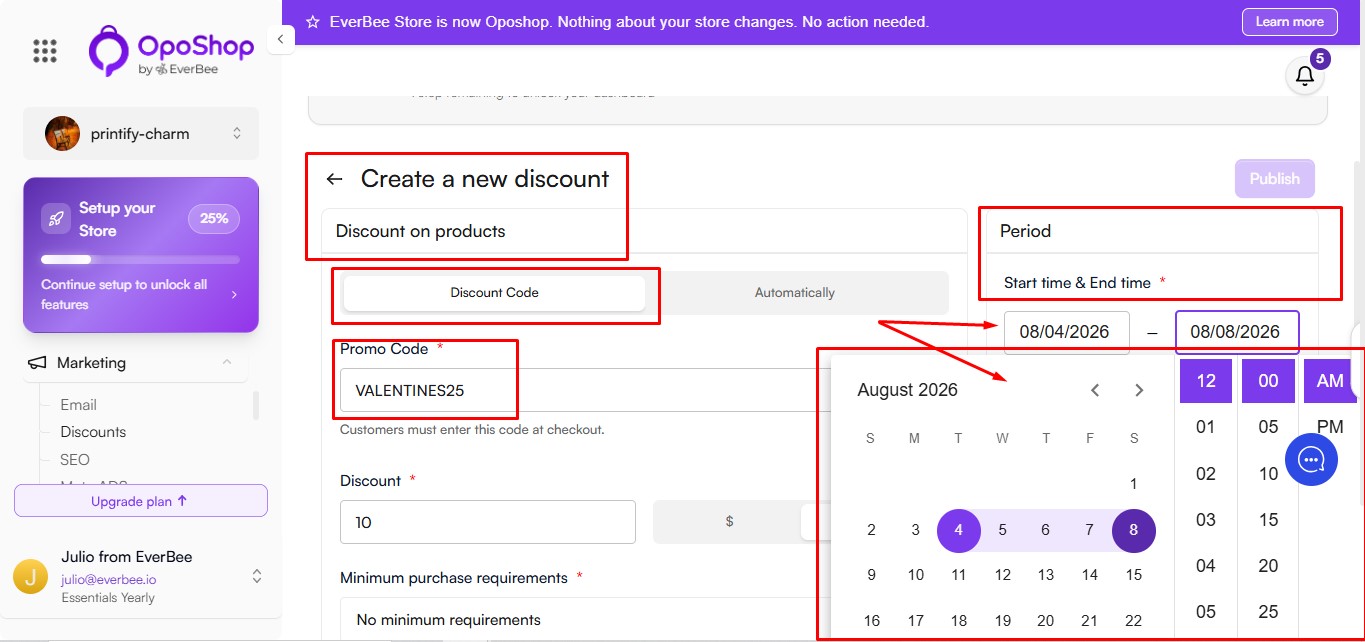
- Select Product Discount as the discount type.
- Choose how the discount will be applied:
- Discount Code: Create a discount code that customers can enter at checkout (for example, VALENTINES25).
- Automatic Discount: The discount is applied automatically when the specified conditions are met.
When using an Automatic Discount, eligible products will display the discounted price in your store, and customers will receive the discount without needing to enter a code at checkout.
Set the Start Date & Time and End Date & Time to control when the discount begins and ends.
- Configuring Discount Details
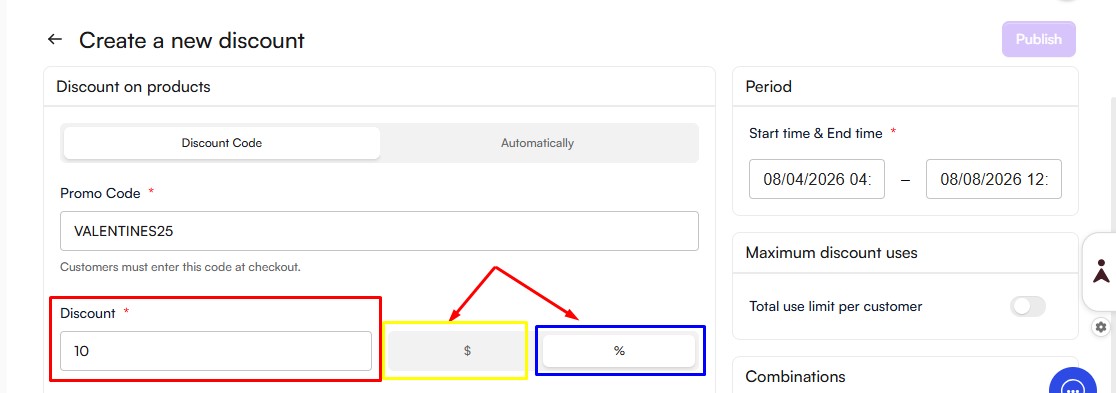
Set up the discount details
- Discount Code: If you're creating a promo code, enter the code customers will use at checkout.
- Next, choose the Discount Value: whether the discount will be applied as a fixed amount ($) or as a percentage (%) off the product price.
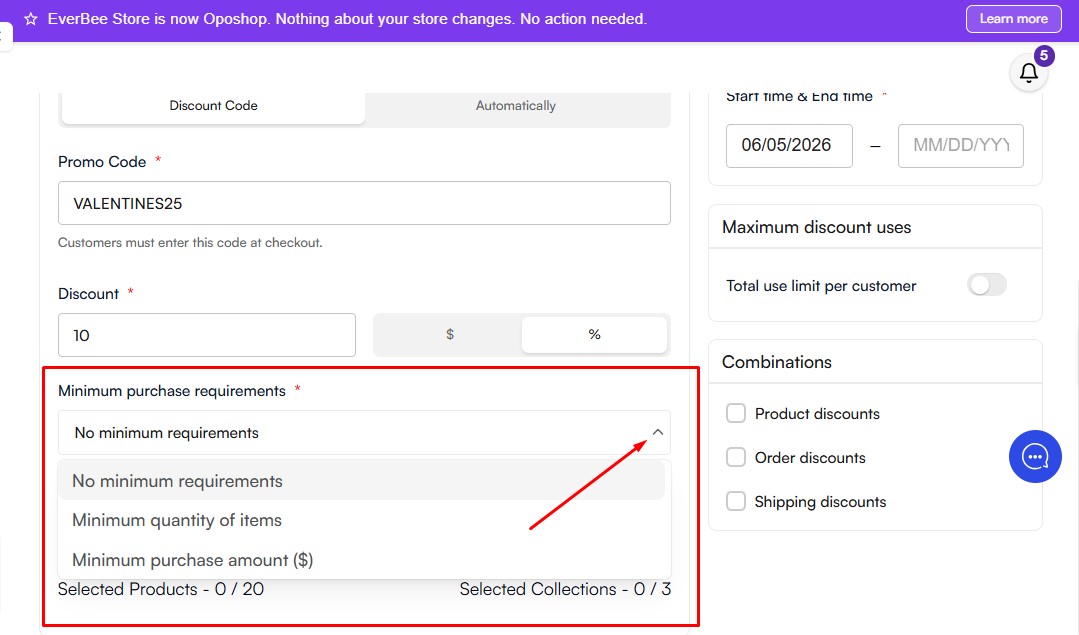
- Minimum Purchase Requirements (Optional)
You can set conditions that customers must meet before the discount is applied
- Minimum Quantity: A discount applies only when 2 or more items are purchased.
- Minimum Purchase Amount: The discount applies only to purchases of $30 or more.
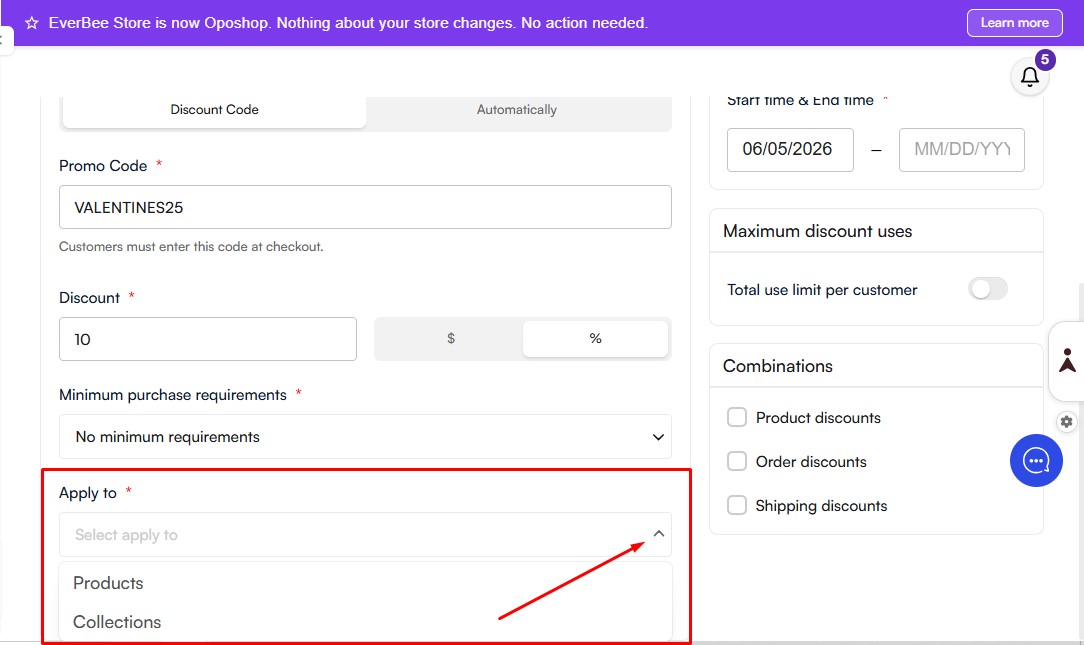
- Next, proceed to Apply To: Choose where the discount will be applied. You can apply it to specific products or selected collections.
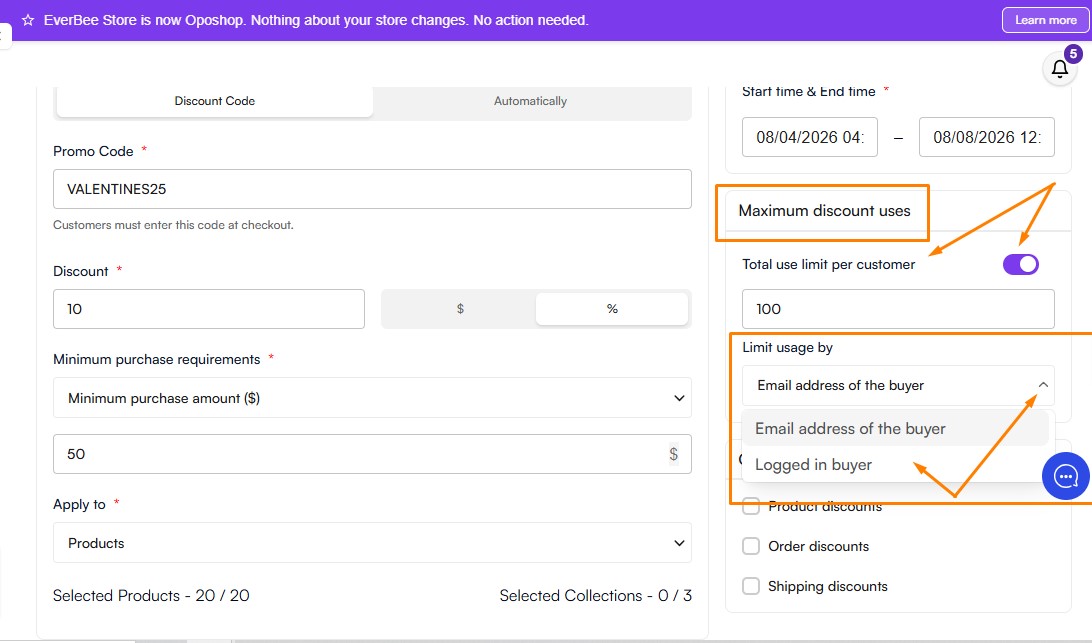
- Maximum Discount Used (Optional)
You can control how often a discount can be used by configuring the following options:
- Total Use Limit for This Discount: Enable this option to limit the total number of times the discount can be redeemed (for example, 100 uses).
- Limit to One Use Per Customer: Enable this option to allow each customer to use the discount only once (for example, one use per email address).
Note: The one-use-per-customer restriction is most effective when customer accounts or email-based identification are required. If customers can check out without logging in, this limitation may not be fully enforceable.
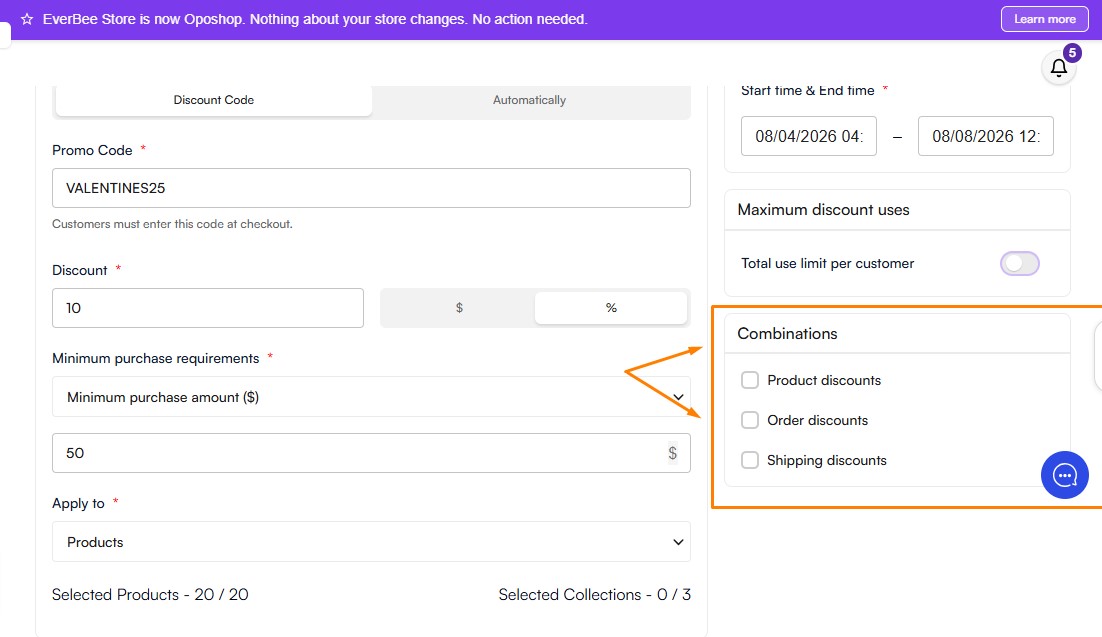
- Combinations
Use the Combinations section to determine whether this discount can be used together with other discounts, including:
- Product Discounts
- Order Discounts
- Shipping Discounts
Once you have configured all settings, enable the Publish toggle. The discount will automatically become active when the specified start date and time are reached.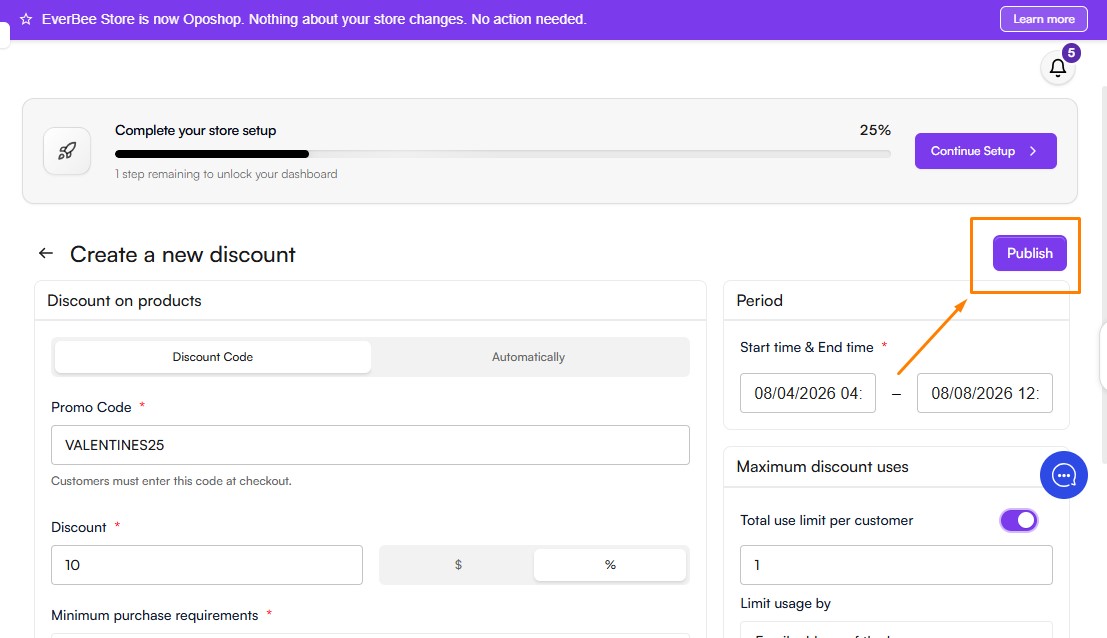
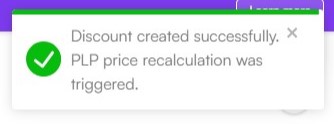
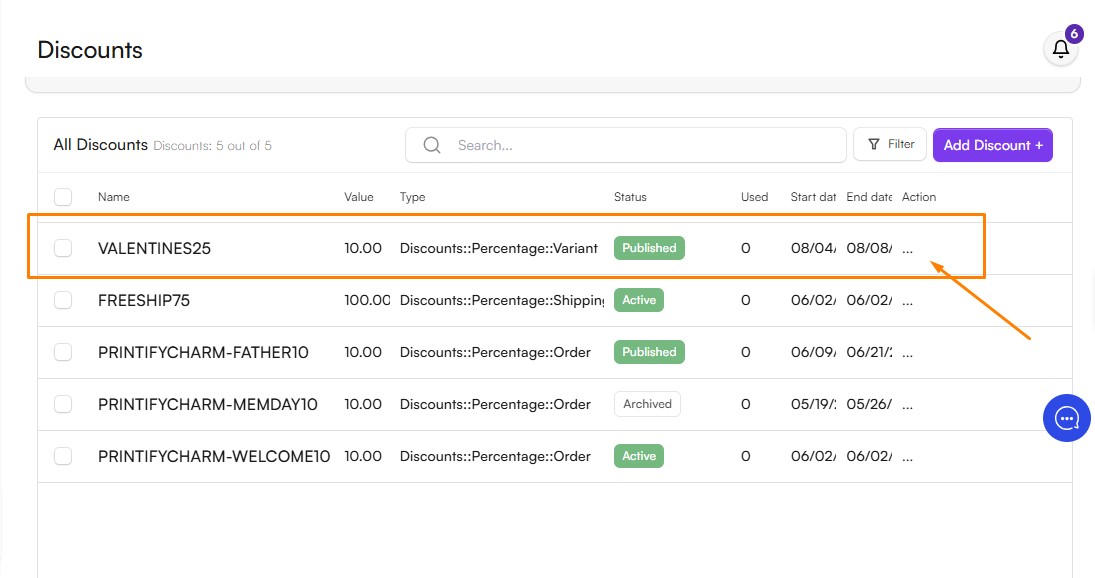
By following these steps, you can create and manage discounts effectively, helping drive sales and encourage customer purchases on your OpoShop.
PS: The same steps above apply to the other type of discount: Discount on Order and Discount on Shipping.